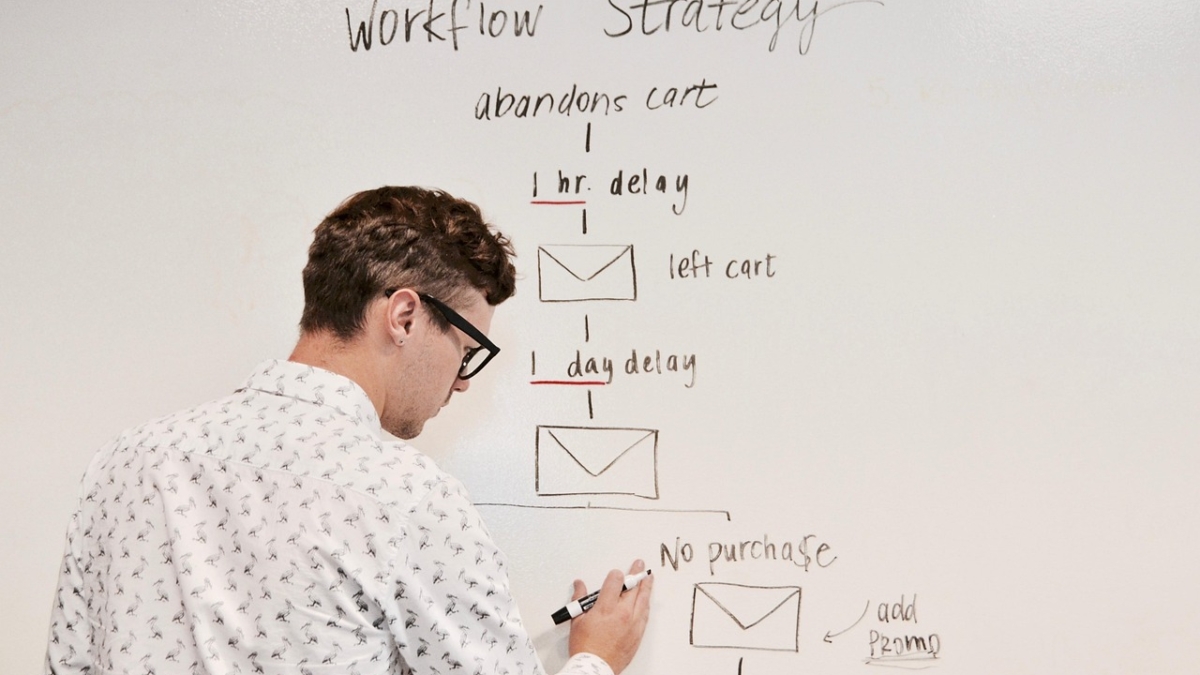

n8n is the most powerful automation tool most bloggers have never heard of. Combined with AI (GPT-4o or Claude), it lets you build a fully automated blog publishing pipeline — research, write, generate images, publish — on autopilot. This is the complete guide to doing exactly that in 2025.
What Is n8n and Why Use It for Blog Automation?
n8n is an open-source workflow automation tool — think Zapier, but self-hosted, more powerful, and free at scale. You connect apps visually using a drag-and-drop node editor, and it handles the logic in between.
For blog automation specifically, n8n is the ideal choice because:
- Native AI nodes — built-in OpenAI, Claude, and Hugging Face integrations
- WordPress REST API support — publish posts directly from your workflow
- Self-hosted = unlimited executions — no per-task pricing like Zapier
- Complex logic — conditionals, loops, error handling, retries
Prerequisites: What You Need Before Starting
- A VPS (Hostinger, DigitalOcean, or Hetzner — $5–10/month)
- n8n self-hosted (installed via Docker or npm)
- OpenAI API key (GPT-4o + DALL-E 3)
- WordPress site with REST API enabled
- WordPress Application Password (for API authentication)
The Complete n8n Blog Automation Workflow
Here’s the full workflow architecture, node by node:
Node 1 — Schedule Trigger
Set a cron schedule (e.g., every day at 8:00 AM). This triggers the entire pipeline automatically. You can also add a manual trigger for on-demand runs during testing.
Node 2 — Google Sheets: Get Next Keyword
Connect to your keyword spreadsheet. Use a filter to pull only rows where the Status column equals “pending”. Use the “Limit” option to grab only one row per run — this prevents API overload and keeps costs predictable.
Node 3 — OpenAI: Generate Article
Use the OpenAI Chat Model node with GPT-4o. Pass the keyword and title from the Sheets row into your system prompt. Your prompt should specify:
- Target word count (1200–1800 words)
- Output format (Gutenberg HTML blocks)
- SEO requirements (keyword in H1, first 100 words, meta description)
- Tone and brand voice
Pro tip: Ask GPT-4o to return a JSON object with fields: title, content, meta_description, slug. This makes downstream nodes cleaner and more reliable.
Node 4 — OpenAI: Generate Featured Image
Add a second OpenAI node configured for DALL-E 3. Pass the article title as the image prompt, with a style directive: “professional digital illustration, dark background, blue accent colors, tech/AI theme, no text”. Request a 1792×1024 image (WordPress featured image aspect ratio).
Node 5 — HTTP Request: Upload Image to WordPress Media Library
DALL-E returns an image URL. Use an HTTP Request node to download the image, then a second HTTP Request node to upload it to your WordPress Media Library via the REST API endpoint /wp-json/wp/v2/media. Save the returned media_id for the next step.
Node 6 — WordPress: Create Post
Use the WordPress node (or HTTP Request to /wp-json/wp/v2/posts) with the following fields:
{
  "title": "{{ $json.title }}",
  "content": "{{ $json.content }}",
  "status": "publish",
  "categories": [9],
  "slug": "{{ $json.slug }}",
  "featured_media": "{{ $node['Upload Image'].json.id }}",
  "meta": {
    "rank_math_focus_keyword": "{{ $json.keyword }}",
    "rank_math_description": "{{ $json.meta_description }}"
  }
}
Node 7 — Google Sheets: Update Status
Loop back to your Google Sheet and update the row: set Status to “done”, log the WordPress post URL, and record the publish date. This keeps your content pipeline clean and auditable.
Handling Errors: Making Your Workflow Bulletproof
n8n workflows can fail — API timeouts, rate limits, malformed JSON. Here’s how to handle the most common issues:
- OpenAI timeout: Add a retry node with 2 retries and 10-second delay
- Malformed JSON: Add a Code node to validate and parse the GPT output before passing it downstream
- WordPress auth failure: Double-check your Application Password — they expire if regenerated
- DALL-E content policy block: Add a fallback image prompt that’s more generic
Scaling the System: From 1 to 30 Articles Per Month
Once the workflow is stable, scaling is straightforward:
- Add more keywords to your sheet — the workflow picks up the next pending row automatically
- Increase schedule frequency — from daily to twice daily if your API costs allow
- Add a content review step — use a Webhook node to trigger manual review before publishing (set post status to “draft” first)
- Monitor with Google Search Console — track which automated articles are getting impressions and double down on those topics
Cost Breakdown: What Does This Actually Cost?
- VPS (n8n hosting): ~$5–8/month
- OpenAI API (GPT-4o): ~$0.01–0.03 per article
- DALL-E 3 image: ~$0.04 per image
- Total per article: ~$0.05–0.10
- 30 articles/month: ~$1.50–3.00 in API costs
Compare that to hiring a content writer at $50–200 per article. The ROI is extraordinary.
Final Thoughts
Automating your blog with n8n and AI is one of the highest-leverage moves you can make as a content creator or solopreneur. The setup takes a weekend. The payoff — a self-running content machine that compounds organic traffic month after month — lasts for years.
Start with one workflow. Master it. Then scale. That’s the CreatorSystemLab approach: systems over hustle.
Have questions about setting up your n8n workflow? Drop them in the comments — I answer every one.